How to Move Your YouTube Channel to a Brand Account (Step-by-Step Guide)
Step-by-Step Instructions STEP 1: Sign in to YouTubeOpen your browser (Chrome recommended)Go to youtube.comSign in with the Google account that owns t...
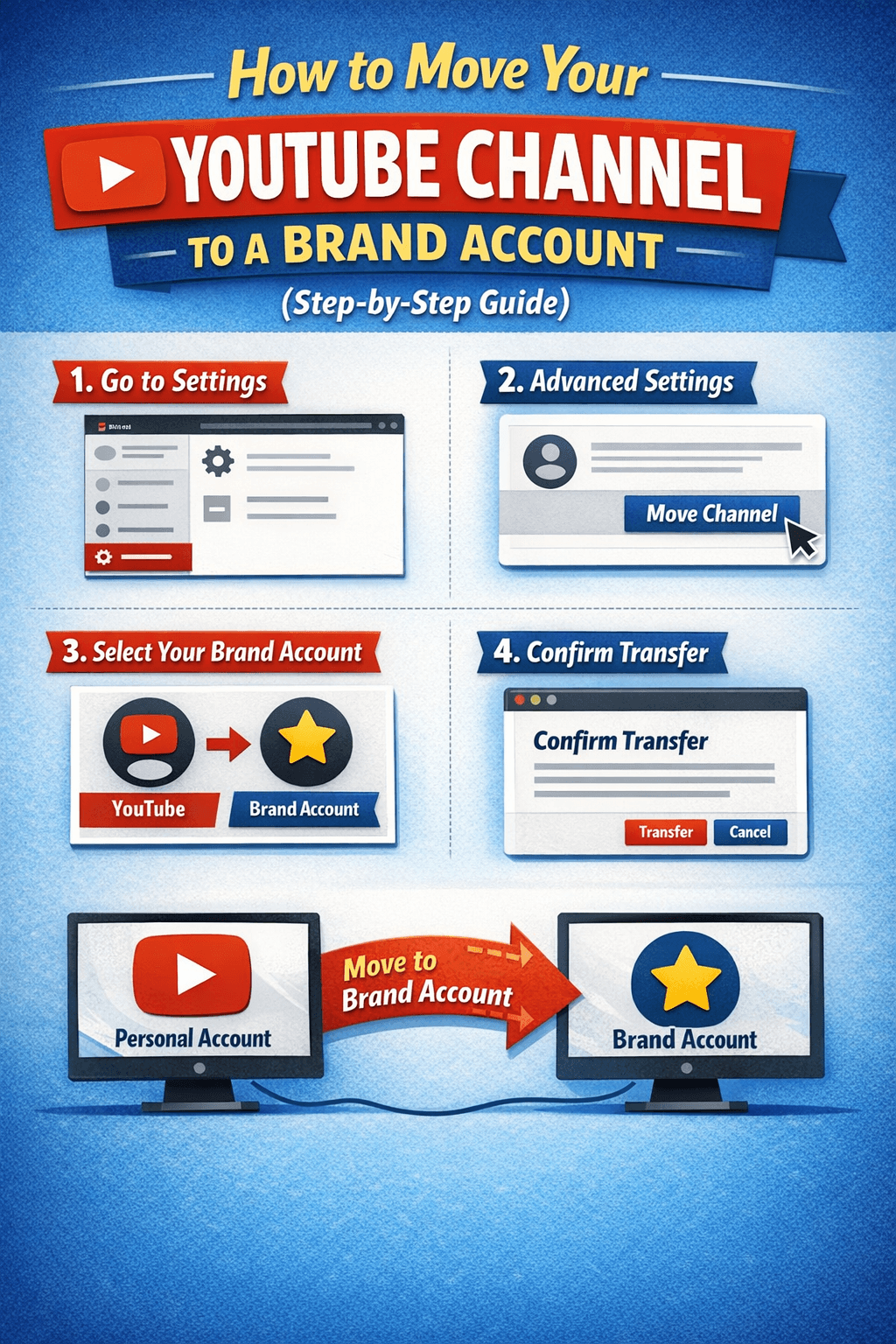
Step-by-Step Instructions
STEP 1: Sign in to YouTube
Open your browser (Chrome recommended)
Go to youtube.com
Sign in with the Google account that owns the channel
STEP 2: Open YouTube Studio
Click your profile picture (top right corner)
Click YouTube Studio
STEP 3: Open Settings
Look at the left sidebar
Click Settings (bottom left)
Click Channel
Click Advanced settings
STEP 4: Start the Move Process
Scroll down to the bottom
Click Move channel to a Brand Account
Google will ask you to sign in again (this is normal)
STEP 5: Choose Brand Account Option
You will now see two options:
🔹 Create a new Brand Account
🔹 Use an existing Brand Account
👉 New users should choose:
Create a new Brand Account
Enter a name for your Brand Account (usually your channel name).
STEP 6: Confirm the Move
Review the information shown
Click Move channel
Confirm again
⏳ The transfer usually finishes in a few minutes
I
What happens after the move?
✔ Videos remain the same
✔ Subscribers remain the same
✔ Monetization stays (if already enabled)
After the Move (VERY IMPORTANT)
Add Team Members
Open YouTube Studio
Go to Settings → Permissions
Click Invite
Add email addresses
Choose role:
Owner
ManagerEditor